
Grata 101
Welcome to Grata Smart living. Let's get you set up!
Welcome to Grata Smart living. Let's get you set up!
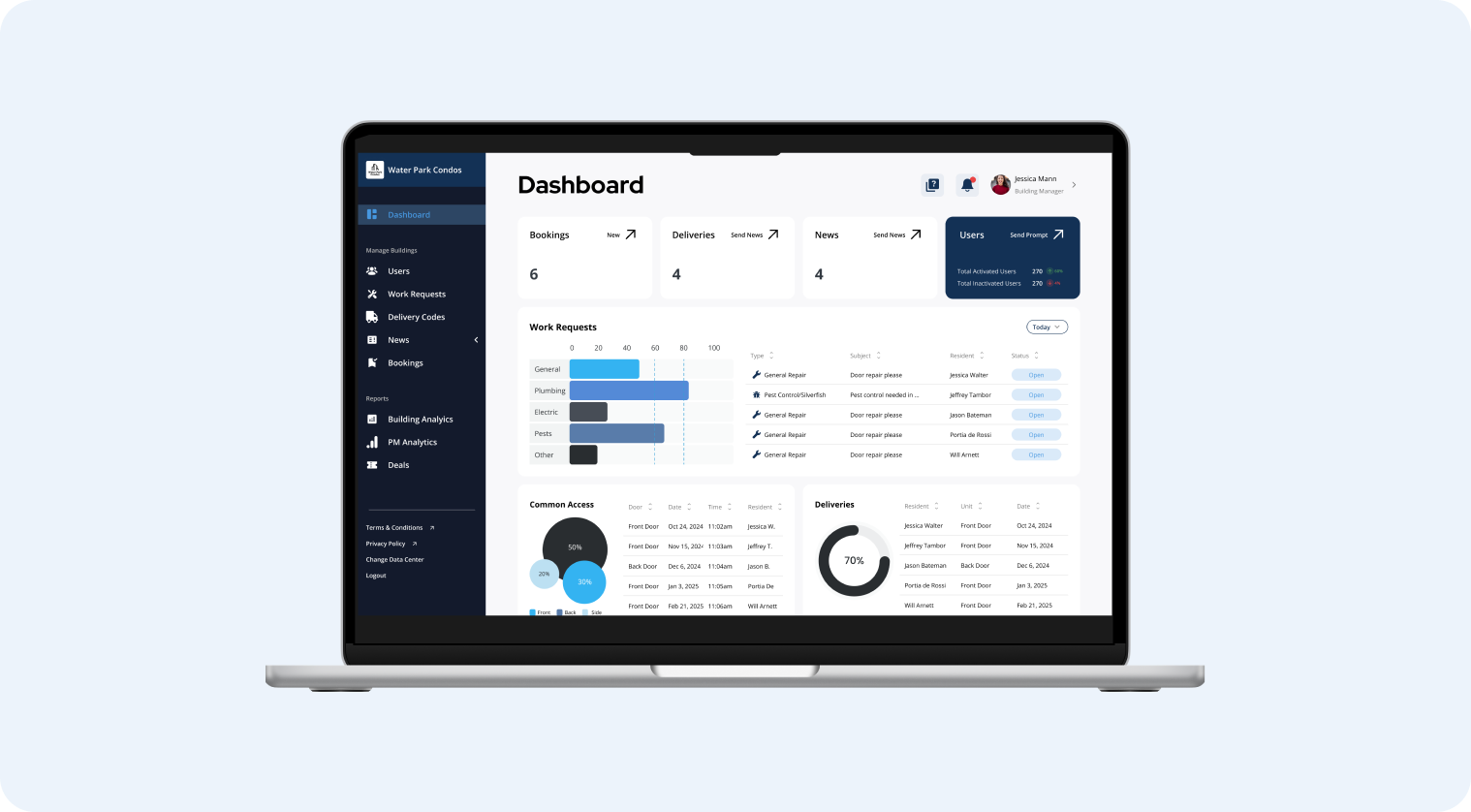
Welcome to Grata Smart Living, here you will find a general overview of the Grata Admin Portal. For more in depth exploration into the functionalities of each tab please visit the help centres home page.
Please note that you may not have access to all of the tabs discussed below.
Quick Overview of Admin Portal:
Walkthrough of Admin Portal - approximate watch time 2 minutes
Admin Overview Breakdown
Navigating the Grata Admin Portal
1. Introduction to the Grata Admin Portal
- Welcome to the Grata admin portal.
- Overview of the tabs used daily in your workflow.
2. Dashboard Overview
- The dashboard provides a general overview of:
- Work requests
- Amenity bookings
- Newsfeed
- A quick glance of building activities.
3. My Buildings Tab
- Access specific building information:
- Unit information
- Resident information
- Lock battery life and lock info.
4. Security Tab
- Overview of all security feeds in your building.
5. Users Tab
- View all users, including:
- Vendors
- Guests
- Residents
- Management
- Check building, unit number, and status.
- Ability to add new users (guest, resident, vendor, building manager, organization manager).
6. Work Requests Tab
- Navigate all work requests:
- View past requests
- Edit ongoing requests
- Chat with users regarding requests.
7. News Feed Tab
- View templates, drafts, and previously sent mail.
8. Bookings Tab
- Edit and view all bookings in your building.
9. Leak Detection Tab
- Check for any leaks detected in your building.
10. Thermostat Tab
- View temperature control settings for every unit in the building.
11. Building Analytics Tab
- Access various building analytics, including:
- Unit door openings
- Total number of lock openings
- Common access door totals
- Resident activations (overview of units, total residents, activation rate, inactive users).
For further information on each tab, refer to the Help Center.